 Video Compressor & Resizer
How to Compress a Video Without Losing Quality
By Olga Klishevich · Updated
The number one fear about compression: "my video will look worse." Understandable — and mostly wrong. Videos straight off a phone camera carry far more data than any screen can show. Smart compression throws away only what you can't see.
Why compression doesn't have to hurt quality
Your iPhone encodes video in real time while recording, which forces it to be generous with bitrate — there's no time to optimize. Re-encoding afterwards, without the real-time pressure, can describe the same picture far more efficiently. That's why a re-compressed video can be more than half smaller and look identical: the discarded data was redundancy, not detail.
"Lossless" in the strict technical sense it is not — but visually lossless is the standard that matters: no difference a human can spot on the screen where the video is actually watched.
The settings that preserve quality
- Install Video Compressor and Resizer — free, on-device, no watermark.
- Select your video.
- Keep resolution at 100%. Downscaling is the visible kind of loss — skip it when quality is the priority.
- Choose Output Quality: Good. In our test Good and High both scored 97 out of 100 on VMAF, an industry-standard quality score — but High left the file nearly 50% bigger. Excellent (99) barely makes the file smaller at all.
- Compress and compare. Play the original and the copy side by side. In our test: 57% smaller, VMAF 97 — an indistinguishable picture.
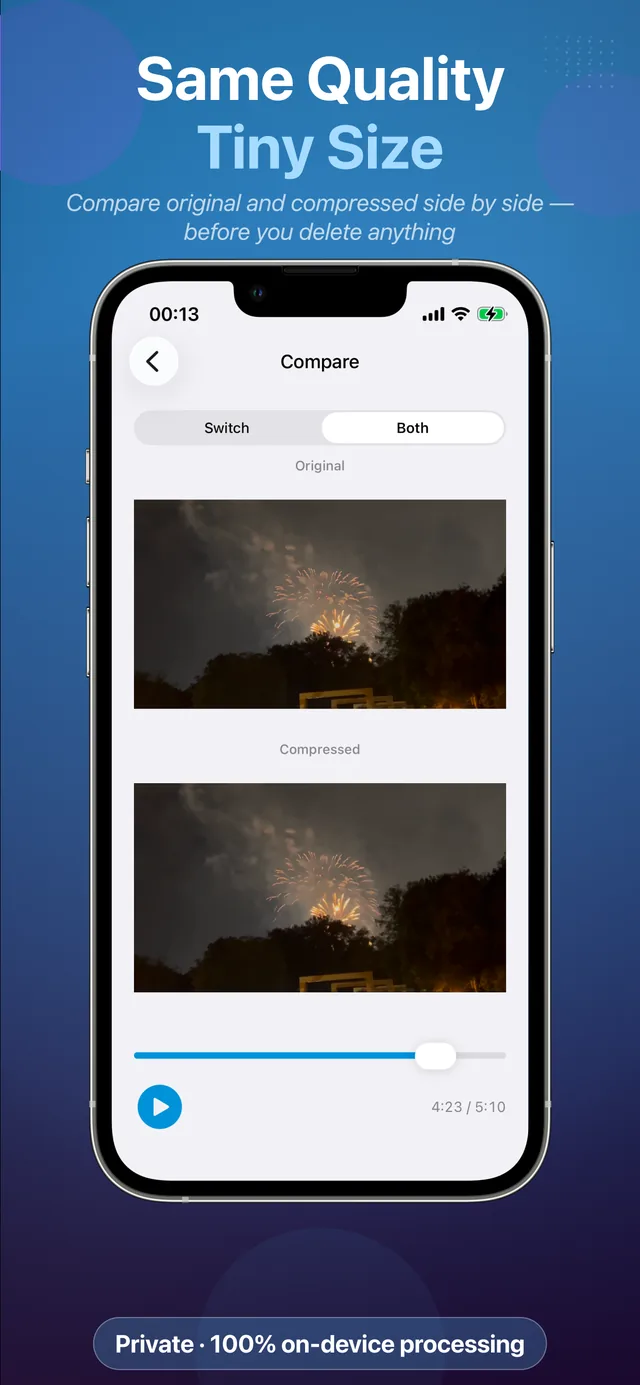
Test it on your own video — compress one clip and compare side by side.
Download Free on the App StoreWhat actually causes visible quality loss
- Over-compression — very low quality settings produce blockiness and smeared motion. Solution: use the quality dial, not the minimum.
- Repeated re-encoding — compressing an already-compressed video multiple times stacks the losses. Compress once, from the original.
- Platform re-compression — WhatsApp and social apps re-encode big uploads badly. Pre-compressing to a sensible size means your encoder makes the quality decisions, not theirs.
Quality checklist
- Compress from the original, not from a previously compressed copy
- Keep 100% resolution when quality is critical
- Use Output Quality: Good → expect a file about 55–60% smaller
- Verify on the target screen before deleting the original