 Video Compressor & Resizer
How to Compress 4K Video on iPhone Without Losing Quality
By Olga Klishevich · Updated
4K looks spectacular and costs accordingly: about 400 MB per minute of footage — the 4K/60 clip in our test weighed 421 MB. Unless you're watching on a 4K TV, most of those pixels are invisible — your iPhone's screen can't even display them all. Here's how to shrink 4K intelligently.
How big is 4K video, really?
| Recording mode | Size per minute | 10 minutes |
|---|---|---|
| 4K at 60 fps | ~420 MB | ~4.2 GB |
| 4K at 30 fps | ~190–350 MB | ~2–3.5 GB |
| 1080p at 30 fps | ~60–90 MB | ~600–900 MB |
The 4K/60 and 1080p/30 rows are from our own test clips (iPhone 15 and iPhone 13 mini); 4K/30 depends on the model and scene. Recording 1080p/30 instead of 4K/60 takes about 80% less space — which is exactly why scaling resolution is the single most effective compression move for 4K footage.
Will I see the difference after 4K → 1080p?
On an iPhone display, almost never. A 6-inch screen physically can't show the full detail of a 4K frame; both versions render nearly identically. The difference only becomes visible on a large 4K TV or monitor viewed up close, or if you crop/zoom heavily in editing. For sharing, social media, and everyday rewatching, 1080p is the sweet spot.
Compress 4K video in 4 steps
- Install Video Compressor and Resizer free from the App Store.
- Select your 4K clips — one or a whole batch.
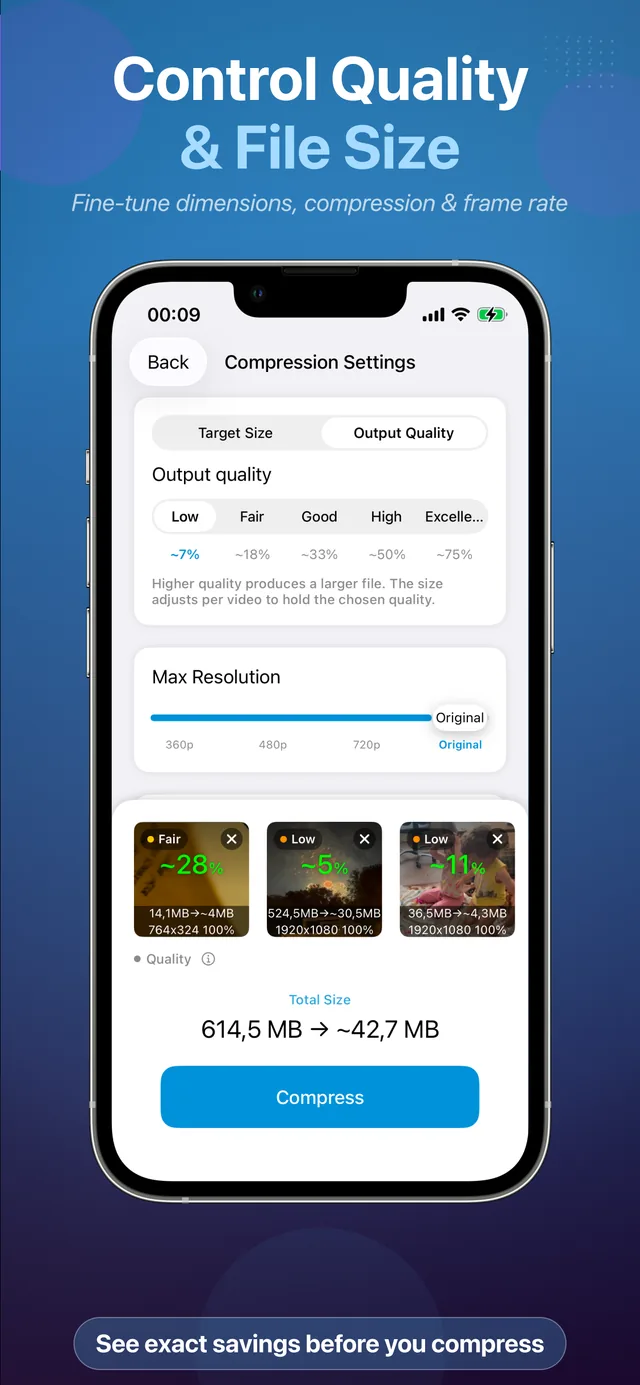
- Set Max Resolution to 1080p (or Percent to 50%). That turns 3840×2160 into 1920×1080. Choose Output Quality: Good — in our test that made a 4K/60 clip 82% smaller with a VMAF of 97. For an even smaller file, also set Max Frame Rate to 30.
- Tap Compress. The app re-encodes on-device (nothing is uploaded) and saves the smaller copies to Photos.
Your 4K library is the fastest 50 GB you'll ever reclaim.
Download Free on the App StoreStop the problem at the source
If you rarely need 4K, record less of it: Settings → Camera → Record Video → 1080p at 30 fps. Also enable Settings → Camera → Formats → High Efficiency (HEVC), which halves file sizes at the same quality. Your existing 4K backlog still needs compressing — but future videos start out about 5× smaller (88 MB instead of 421 MB per minute in our test clips).
What we measured: one minute of 4K/60
We compressed a 1-minute 4K/60 HDR clip shot on an iPhone 15 (421 MB) at every setting below, on that same iPhone 15, with the app's own export settings. Quality is the VMAF score — 0 to 100, higher means closer to the original — judged two ways: at 1080p, the detail a phone or laptop screen actually shows, and with VMAF's model for a 4K TV.
| Settings | Size | Smaller by | VMAF, phone | VMAF, 4K TV |
|---|---|---|---|---|
| 1080p · 60 fps · Good | 74 MB | 82% | 97 | 90 |
| 4K · Fair | 165 MB | 61% | 94 | 88 |
| 4K · Good, High or Excellent | 209 MB | 50% | 97 | 93 |
| 1080p · 30 fps · Good | 38 MB | 91% | — | — |
| 1080p · 60 fps · Fair | 43 MB | 90% | — | — |
| 720p · 60 fps · Good | 35 MB | 92% | — | — |
— size only; we didn't score these exports.
- 4K → 1080p at Good is the sweet spot for phone viewing: 82% smaller, and the copy scores 97.
- Keep 4K only for footage you'll watch on a big screen — and then at Good. On the 4K-TV model, 4K at Good scores 93 against 90 for 1080p at Good.
- Skip Fair at 4K. It scored 88 on a 4K TV — below 1080p at Good — while taking more than twice the space.
- Good, High and Excellent give the same file at 4K/60. With no size limit at all, the iPhone 15 encodes this clip to 209 MB, and all three levels allow more than that, so all three export that very file. The app measures this for each video: the estimate shows the same size for those levels, and a note under the quality picker names them. At 1080p/60 the same clip tops out at 157 MB, so there only Excellent reaches it.
- 30 fps halves the size again — but fast action (sports, pets, panning) looks noticeably less fluid at 30 than at 60.
Results vary with the footage: busy, high-motion scenes need more data. For 1080p footage, see our 1080p measurements.