 Video Compressor & Resizer
How to Compress a Video on iPhone (2026 Guide)
By Olga Klishevich · Updated
A video that's “too big” blocks everything — emails bounce, Messages refuses to send, iCloud fills up. Surprisingly, iOS still has no built-in way to compress a video that's already in your library. Here's why videos get so large, what actually reduces their file size, and the fastest way to shrink any video by up to 90% — right on your iPhone, without visible quality loss.
Why are iPhone videos so large?
Modern iPhones record beautiful footage, and beauty is expensive: one minute of 4K at 60 fps takes roughly 400 MB. Even 1080p at 30 fps takes 60–90 MB per minute — the HDR clips in our test below were 88 MB each. A short family video can easily outgrow email limits, choke Messages, and eat your storage a gigabyte at a time.
Three things decide a video's file size:
- Resolution — 4K has four times the pixels of 1080p, and file size scales with it.
- Bitrate / quality — how much data describes each second of footage. This is where smart compression wins: it lowers the bitrate while keeping what your eyes actually notice.
- Length — every extra second costs the same amount of data. Trimming helps, but rarely enough on its own.
Compression works on the first two, so the picture keeps looking the same.
Can I compress a video with built-in iOS tools?
Not really. You can lower the recording resolution in Settings → Camera → Record Video, but that only affects future videos. For videos you've already recorded, iOS offers no compression tool — iMovie can re-export at a lower resolution, but it's slow, clumsy for this job, and gives you no control over the actual file size. That's why a dedicated compressor app is the standard answer.
The fastest way: compress with Video Compressor & Resizer
- Install the app. Download Video Compressor and Resizer free from the App Store — it's only 5.7 MB.
- Select your videos. Open the app and pick one video or dozens straight from your Photos library.
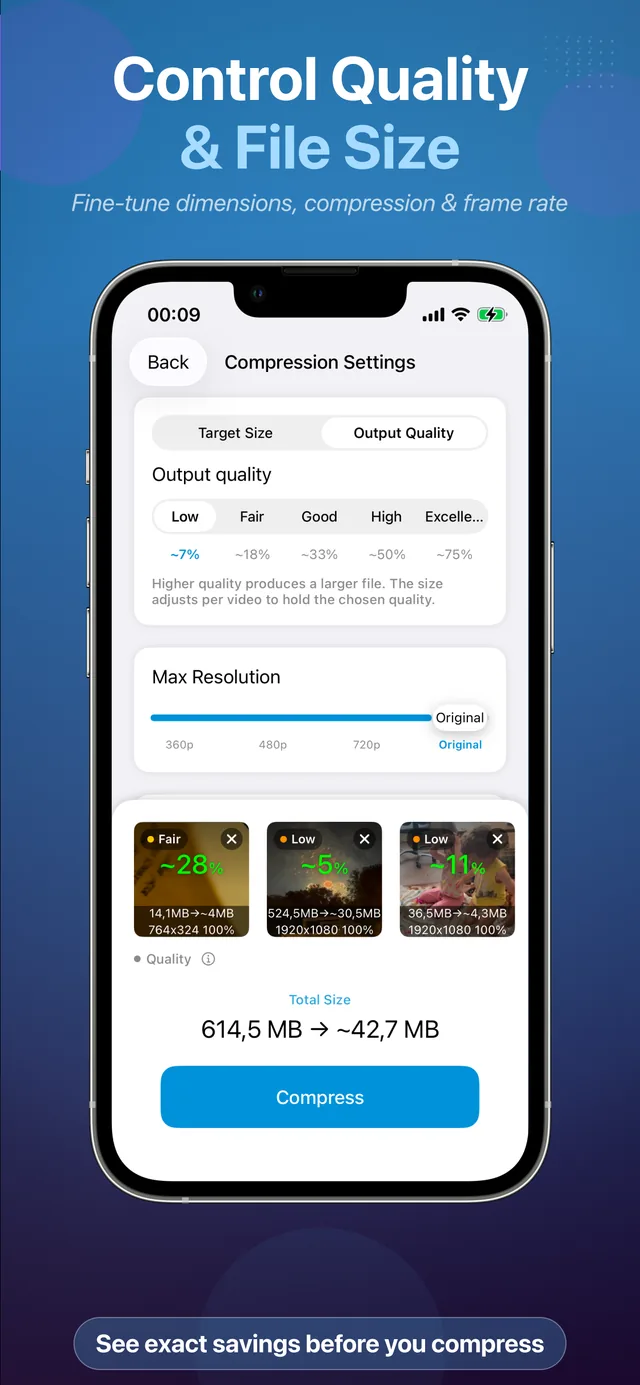
- Choose your settings. Pick an Output Quality level — Low, Fair, Good, High or Excellent — and, for a smaller file, a lower Max Resolution. The app shows the estimated output size before you commit. Not sure? Good at the original resolution is the sweet spot: in our test it cut a 1-minute clip by 57% with no visible difference.
- Tap Compress. Seconds later the compressed copy is saved to Photos, ready to share or keep. The original stays untouched until you decide to delete it.
Ready to reclaim your storage? Compress your first video in under a minute.
Download Free on the App StoreWhich settings should I choose?
| Goal | Max Resolution | Output Quality | 1-minute clip* |
|---|---|---|---|
| Free up storage, keep quality | Original | Good | ~38 MB (57% smaller) |
| WhatsApp, Messages, social | 720p | High | ~26 MB (70% smaller) |
| Email (20–25 MB limit) | 720p | Good | ~18 MB (80% smaller) |
| Archive old memories, smallest files | 720p | Fair | ~11 MB (87% smaller) |
* From an 88 MB, 1-minute 1080p iPhone clip — see how we measured.
How much smaller will my video get? We measured it
We compressed 1-minute 1080p videos shot on an iPhone 13 mini at every Output Quality level, at the original resolution and at 720p, on an iPhone 15. Size is for one minute of video; quality is the VMAF score — 0 to 100, higher means closer to the original.
| Output Quality | Original resolution (1080p) | 720p |
|---|---|---|
| Low | 11 MB · 87% smaller · VMAF 75 | 6 MB · 93% smaller · VMAF 61 |
| Fair | 22 MB · 75% smaller · VMAF 88 | 11 MB · 87% smaller · VMAF 76 |
| Good | 38 MB · 57% smaller · VMAF 97 | 18 MB · 80% smaller · VMAF 91 |
| High | 56 MB · 36% smaller · VMAF 97 | 26 MB · 70% smaller · VMAF 97 |
| Excellent | 82 MB · 6% smaller · VMAF 99 | 38 MB · 57% smaller · VMAF 98 |
Three things stand out:
- Good is the sweet spot. At the original resolution it scored the same 97 as High, yet High left the file nearly 50% bigger.
- 720p at High looks as good as 1080p at Good (97 either way) and takes a third less space — the best choice for sharing.
- Excellent barely saves anything on footage that's already efficiently encoded. Use it only when you need a re-encode, not a smaller file.
Shooting 4K? Scaling it to 1080p at Good made a 1-minute 4K/60 clip 82% smaller (421 → 74 MB) with a VMAF of 97 — full results in our 4K guide.
Other ways to make a video smaller on iPhone
Lower the recording resolution (prevents future bloat)
Go to Settings → Camera → Record Video and choose 1080p at 30 fps instead of 4K at 60 fps. This cuts new recordings by roughly 75% — but does nothing for the videos already filling your storage.
Trim the video (small gains)
In Photos, tap Edit and drag the trim handles. Useful for cutting dead footage, but a 20% shorter video is only 20% smaller. Combine trimming with compression for the biggest reduction.
Frequently asked questions
Will compressing reduce my video's quality?
Not at the right setting. In our test, Good at the original resolution made a 1-minute iPhone clip 57% smaller with a VMAF quality score of 97 out of 100 — differences that are very hard to spot on a phone or laptop. See our guide on compressing without losing quality.
Does it work on iPad?
Yes — the app is universal and fully supports iPadOS 18+, plus Apple Silicon Macs.
Is the original video deleted?
No. The app saves a new, smaller copy. You choose if and when to delete the original.