 Video Compressor & Resizer
How to Batch Compress Videos on iPhone — Multiple Videos at Once
By Olga Klishevich · Updated
Compressing videos one at a time is fine for a single share. But when the goal is reclaiming storage from years of footage, you need batch compression: select dozens of videos, set the quality once, and let the app grind through all of them while you do something else.
Why batch compression matters
The average iPhone photo library holds hundreds of videos. At even two minutes each, compressing them individually would take hours of tapping. Batch processing turns the same job into one selection, one settings choice, and one tap — the difference between "I'll do it someday" and actually getting your storage back today.
Batch compress in 4 steps
- Install Video Compressor and Resizer — free on the App Store, built for batch work.
- Select multiple videos. Open the app's picker and tap every video you want to shrink. Go big — screen recordings, old events, entire vacation folders.
- Choose one set of settings. The same quality level and resolution percentage applies to the whole batch. For storage cleanup, Output Quality: Good at the original resolution is the sweet spot — about 57% smaller with no visible difference in our test.
- Tap Compress and wait. The app processes each video in sequence, entirely on-device. Compressed copies land in your Photos library as they finish.
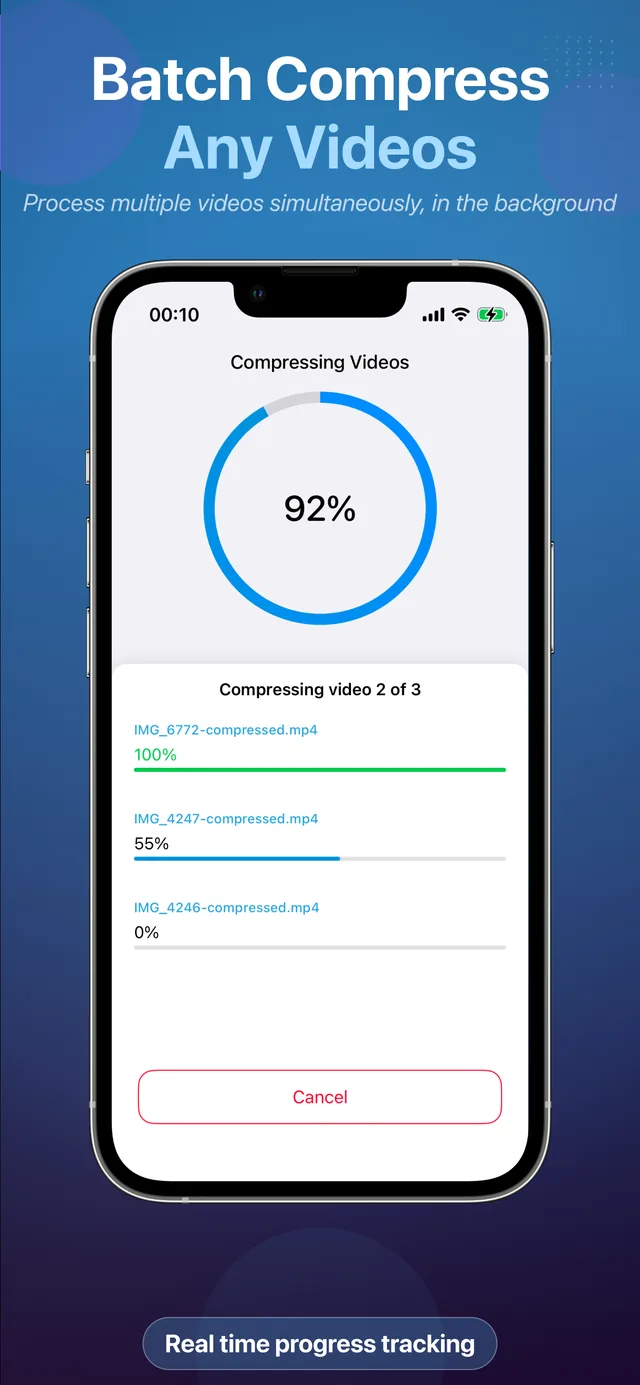
One run. Gigabytes back. Batch compression is free to try.
Download Free on the App StoreHow much time and space does a batch save?
| Batch | Before | After |
|---|---|---|
| 20 vacation clips, 4K/60, ~2 min each | ~17 GB | ~3 GB at 1080p / Good |
| 50 clips, 1080p/30, ~1 min each | ~4.4 GB | ~1.9 GB at original / Good ~0.6 GB at 720p / Fair |
Computed from our measured ratios — see the 4K and 1080p results.
After verifying the compressed copies, delete the originals and empty Recently Deleted to actually reclaim the space — full walkthrough in freeing up iPhone storage.