Turn MOV, MKV, WebM, AVI and more into MP4 — or almost any other format. Pull the audio out as MP3, make GIFs and ringtones, and convert HEIC photos to JPG. Everything happens on your iPhone; nothing is uploaded.
Free to try·iPhone & iPad·Works offline·26 languages·No watermark
Pick a file, choose a format, tap Convert. Need more control? Codec, resolution, bitrate and frame rate are all there — and out of the way when you don't.
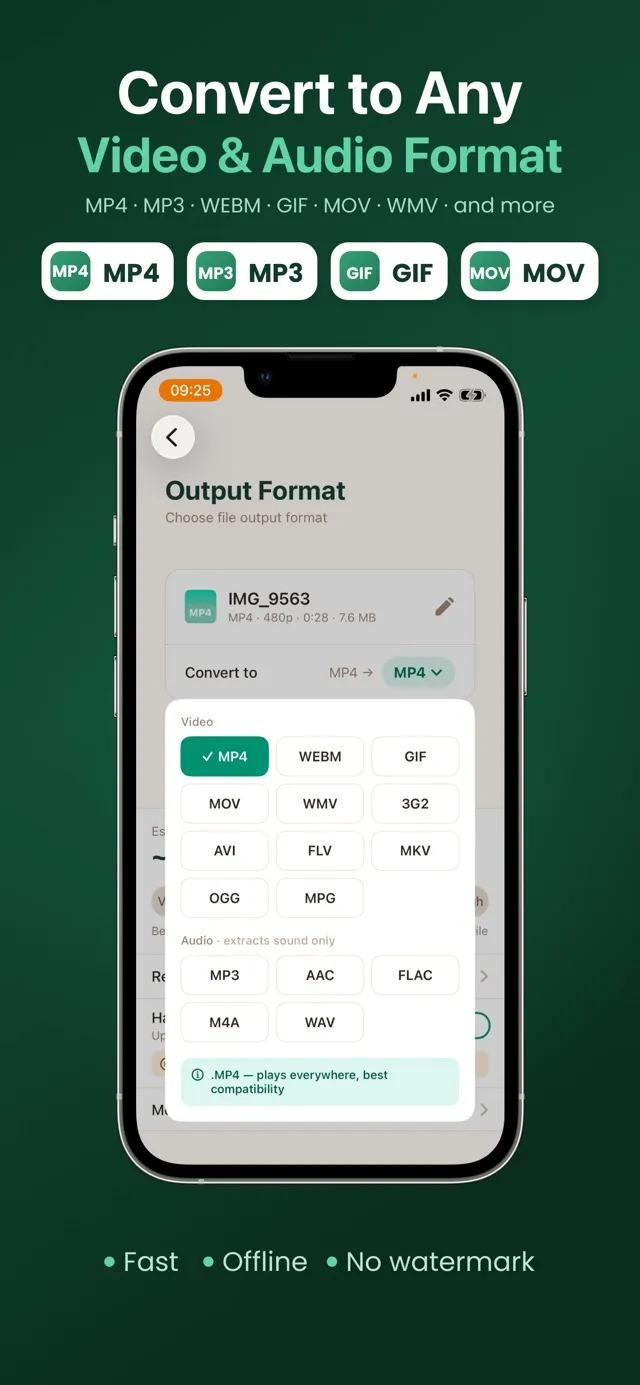
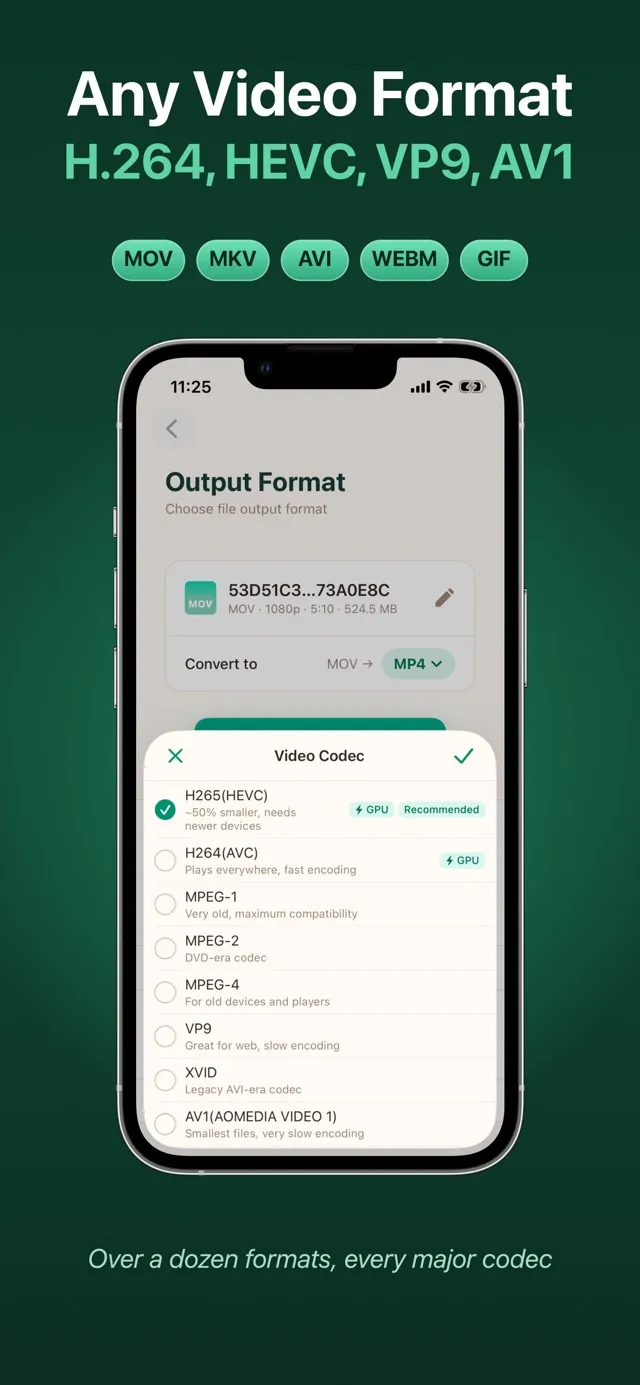
Open MP4, MOV, MKV, AVI, WEBM, FLV, WMV, MPEG, 3GP and more. Export to over a dozen formats with H.264, HEVC, VP9 or AV1.
Original quality copies the video straight into MP4 — no re-encoding, no quality loss. HDR and Dolby Vision are kept.
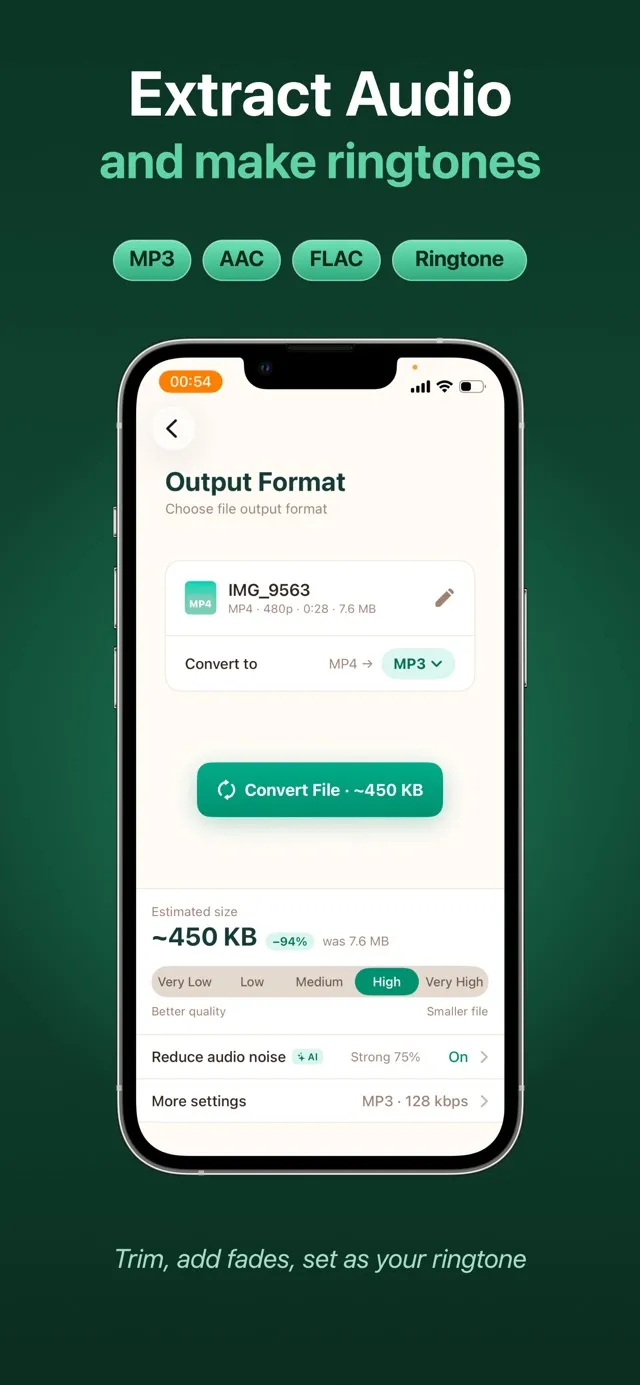
Save a video's sound as MP3, AAC, M4A, WAV, FLAC or OGG. Converts audio files too — voice memos to MP3 in a tap.
Trim a clip, set the speed and loops, and get a GIF. Or cut a 30-second ringtone with fade-in and fade-out.
Convert photos to JPG, PNG, WEBP or BMP — HEIC to JPG included — a whole selection in one pass.
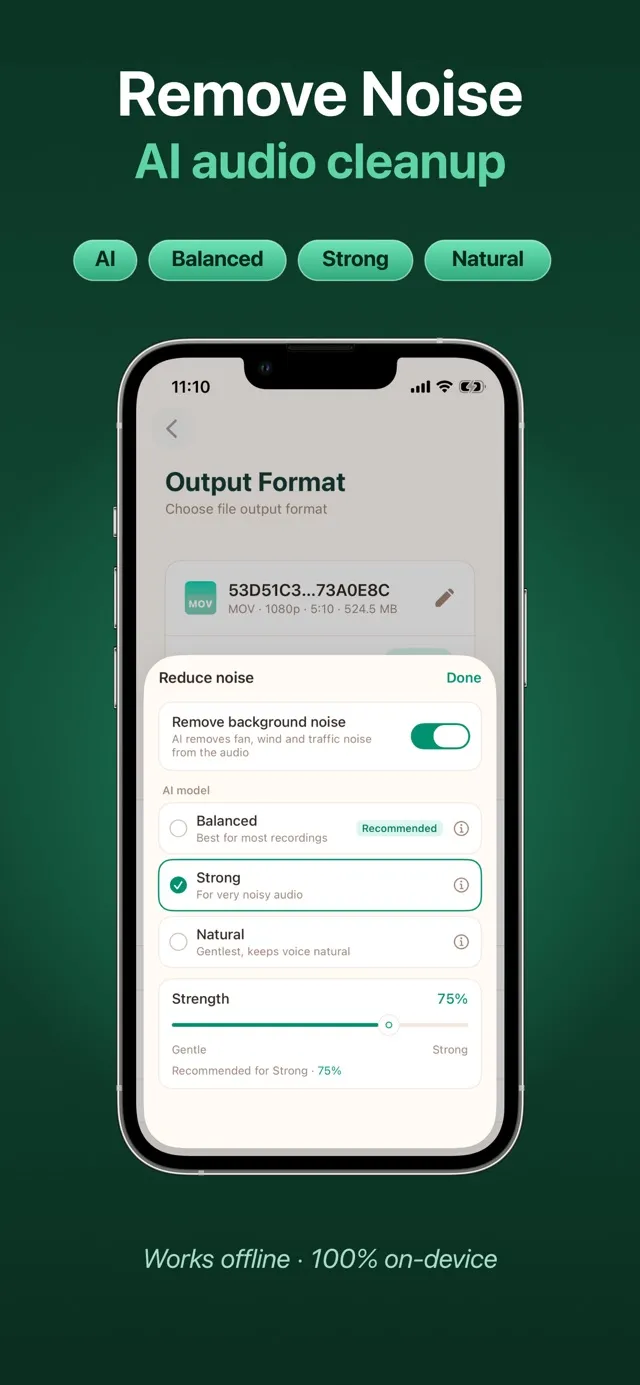
AI noise reduction cleans fans, traffic, wind and keyboard noise out of a video's audio and keeps voices natural.
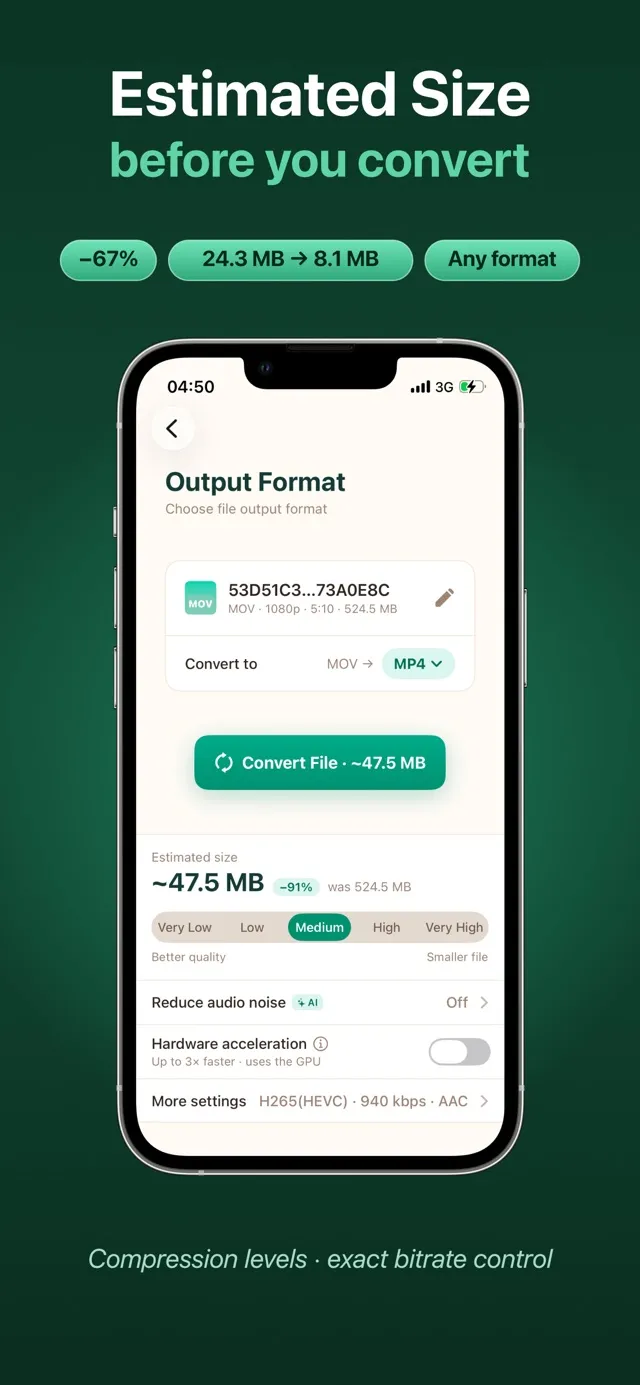
Quality levels or an exact bitrate, resolution up to 4K or down for small files, frame rate — and the estimated size before you convert.
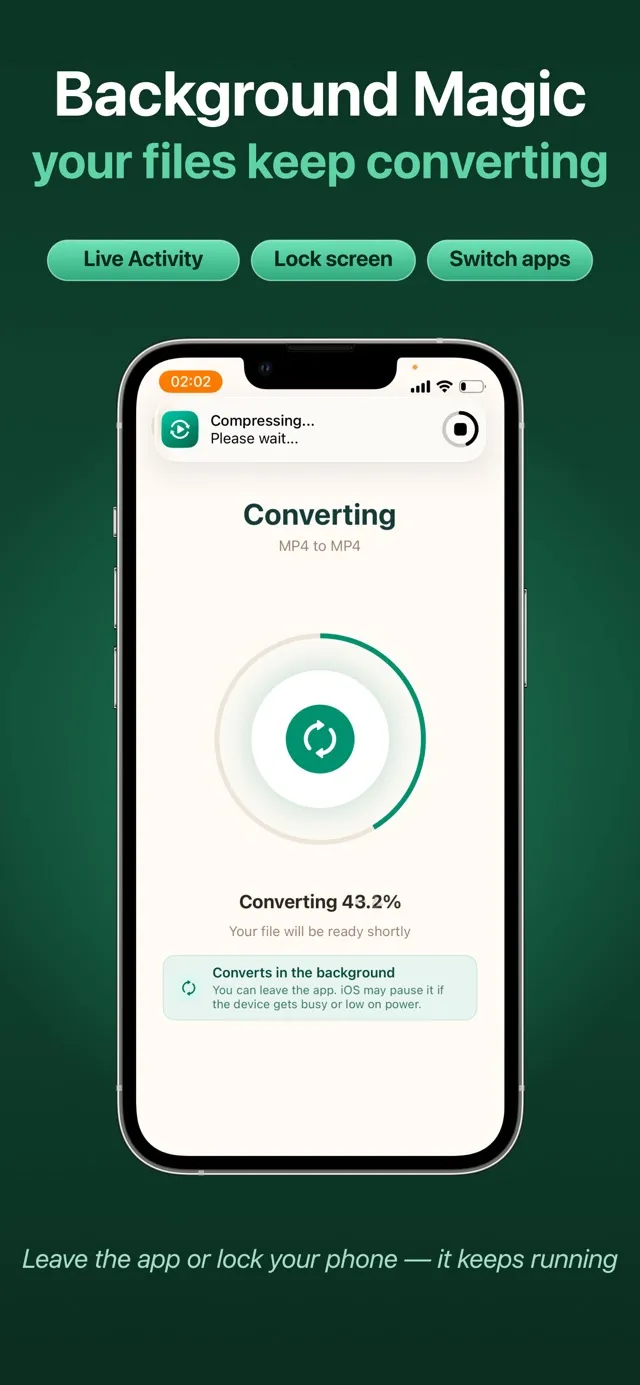
Convert many files in one run and switch to another app while it works — the conversion keeps going in the background.
Every conversion runs on your iPhone. No account, no uploads, and it works in airplane mode.
Every setting is there when you want it — and out of the way when you don't.
Video, audio and photos — from Photos, from the Files app, or straight from the share sheet in any other app.
In
Out
In
Out
In
Out
Video codecs
Picture
No account, no upload queue, no watermark.
Choose videos, audio or photos from your Photos library or the Files app — one file or a whole batch. Or tap Share in any app and send them here.
MP4, MP3, GIF, JPG — or any of the others. The recommended settings just work; open More settings for codec, resolution, bitrate and frame rate, and see the estimated size first.
Tap Convert. Save the result to Photos or Files, share it, or set it as your ringtone. Everything you've converted stays organized in the app's history.
Step-by-step answers to the most common “it won't open” and “wrong format” problems.
Turn MOV, MKV, WebM, AVI and other videos into MP4 — the format every device and website accepts.
Read guide →iPhone videos are MOV files. Turn them into MP4 in seconds — no re-encoding, no quality loss.
Read guide →iPhone can't open MKV. Convert it to MP4 — often in seconds, with no quality loss.
Read guide →Got a WebM you can't save to Photos? Turn it into an MP4 in a few taps.
Read guide →Save a video's soundtrack as MP3, M4A, WAV or FLAC — in seconds, on the device.
Read guide →Voice Memos are M4A. Turn them — or any audio — into MP3 that plays on every device.
Read guide →Pick the moment, set the speed and loops, and share a GIF anywhere.
Read guide →Cut the best 30 seconds of any video or song, add a fade, and set it as your ringtone.
Read guide →iPhone photos are HEIC. Convert them to JPG, PNG or WEBP in batches, right on the phone.
Read guide →AI noise reduction removes wind, traffic, fans and keyboard noise — voices stay natural.
Read guide →Quick answers about converting videos, audio and photos on iPhone and iPad.
MP4, MP3, GIF, JPG and more — converted on your iPhone, never uploaded. Free to try on iPhone and iPad.